

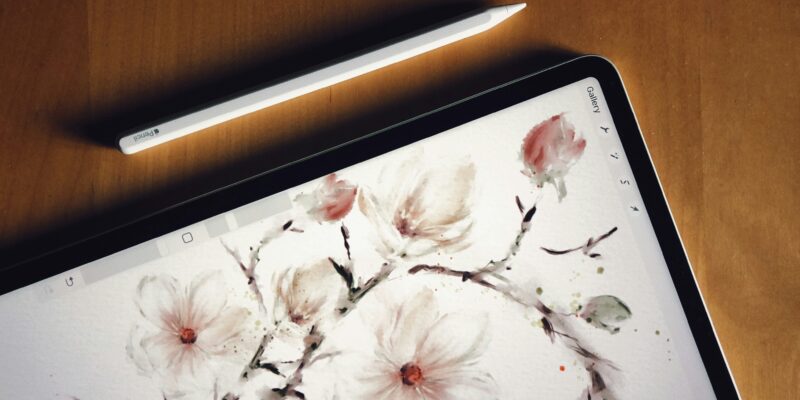
Digital painting has revolutionized how artists create stunning visuals from concept art to illustrations without the mess of traditional paints. Whether you’re sketching on an iPad or refining on a desktop, Procreate and Adobe Photoshop stand out as powerhouse tools. Procreate shines for its intuitive mobile experience, while Photoshop offers unmatched depth for complex edits. In this post, we’ll dive into their key features, workflows, and pro tips to get you painting like a digital master.
Why These Tools Dominate Digital Art
Procreate, exclusive to iPad and iPhone, is beloved for its one-time $12.99 purchase (no subscription!). It feels like sketching on paper with pressure-sensitive Apple Pencil support, infinite canvas, and lightning-fast performance. Photoshop, part of Adobe Creative Cloud ($20.99/month), excels in professional workflows with layers, masks, and plugins galore. Together, they cover every stage: quick ideation in Procreate, polished finals in Photoshop.
Both mimic real media—brushes that blend like oils, watercolor washes, or pencil hatching—powered by advanced engines. Procreate’s Valkyrie engine handles millions of pixels smoothly, while Photoshop’s neural filters add AI magic like sky replacement.
Essential Tools and Features in Procreate
Procreate’s interface is deceptively simple: a sidebar for brushes, colors, and layers on an infinite canvas.
-
Brushes Galore: Over 200 built-in brushes, plus thousands free/custom from sites like Gumroad. Favorites include 6B pencil for sketching, Gouache for painterly strokes, and Airbrush for soft glows. Customize opacity, flow, jitter, and Apple Pencil tilt/pressure for realism.
-
Layer Magic: Unlimited layers with clipping masks, blending modes (e.g., Multiply for shadows), and groups. Use Reference Layer to trace photos lightly.
-
Color and Gestures: Eyedropper tool grabs hues mid-stroke. QuickMenu customizes shortcuts—pinch to zoom, two-finger tap to undo infinitely.
Workflow Example: Start a fantasy portrait. Sketch loosely on a new canvas (e.g., 3000x4000px at 300 DPI). Block in values with a flat brush on a Multiply layer. Refine with textured brushes, add highlights via Add layer, and smudge for seamless blends. Time-lapse recording exports your process as a video—perfect for social sharing.
Pro tip: Enable Drawing Assist for straight lines or symmetry, ideal for architecture or mandalas.
(Imagine a split-view of sketch vs. final here.)
Photoshop’s Pro-Level Toolkit
Photoshop thrives on desktop precision, syncing seamlessly via iCloud or export (Procreate saves as PSD).
-
Brush Engine: Thousands of brushes via Adobe’s library. Kyle’s Painting Brushes (free) replicate oils, pastels, and mix media. Adjust dynamics for scatter, angle, and transfer—realism skyrockets.
-
Advanced Layers: Adjustment layers (Curves for contrast, Hue/Saturation for color grading) are non-destructive. Smart Objects preserve edits; Liquify warps anatomy effortlessly.
-
Filters and AI: Neural Filters auto-generate skin smoothing or style transfers. Mixer Brush blends like wet paint; Smudge Tool with Finger painting mode mimics finger drags.
Workflow Example: Export Procreate sketch as PSD. Import into Photoshop, auto-align layers. Block flats with Lasso tool fills. Paint details on new layers, use Dodge/Burn for lighting. Mask hair with Refine Edge, add textures via Overlay blend. Finish with Camera Raw for global tweaks—vibrance, clarity, dehaze.
Pro tip: Actions automate repetitive tasks, like canvas setup or color correction. Bridge manages files across projects.
Comparing Workflows: Procreate vs. Photoshop
Hybrid Tip: Paint base in Procreate’s portability, export to Photoshop for client revisions. Use Photoshop’s Content-Aware Fill to erase mistakes instantly—Procreate lacks this.
Tips to Elevate Your Digital Paintings
-
Study References: Overlay photo textures (e.g., canvas weave) on a soft-light layer for tactile feel.
-
Value First: Grayscale underpainting ensures strong composition before color.
-
Shortcuts: Procreate’s QuickMenu; Photoshop’s F-keys (B for Brush, [ ] resize).
-
Community Boost: Join Reddit’s r/DigitalPainting or Procreate’s DreamSnap for feedback.
-
Hardware: iPad Pro + Pencil for Procreate; Wacom tablet for Photoshop.
Avoid common pitfalls like over-blending (keep edges crisp) or flat lighting—exaggerate contrasts for pop.
Digital painting with these tools feels boundless. Procreate democratizes art on-the-go; Photoshop polishes for pros.